How to Record a Meeting on iPhone (and Get a Transcript You Can Share)
Record a meeting on iPhone with Voice Memos: where to place the phone, battery and storage for long meetings, consent, and how to get a shareable transcript.
By Serhii MaysonPublished 7 min read
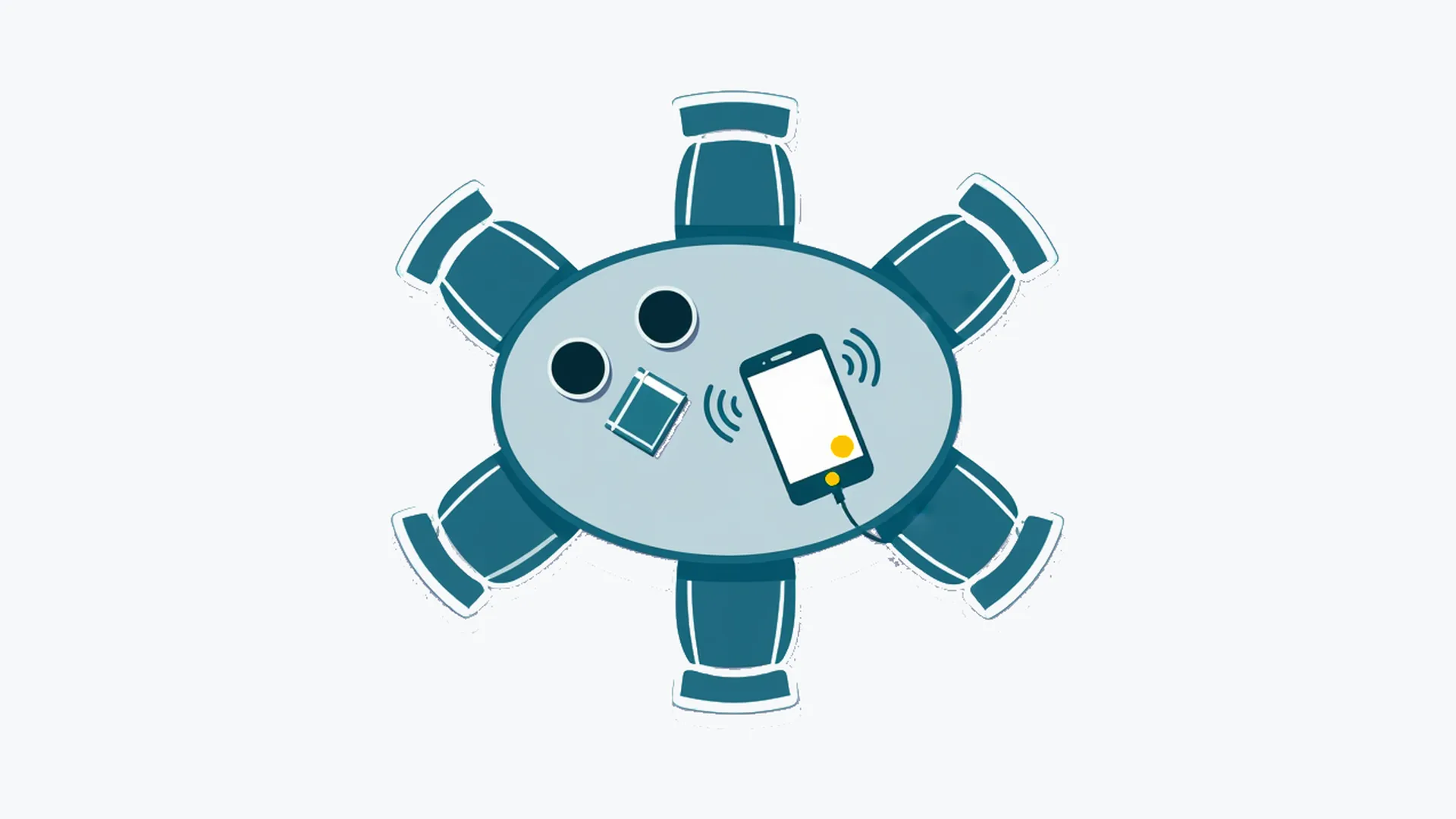
Open Voice Memos, turn on Do Not Disturb, lay the iPhone face up in the middle of the table and tap Record. Plug it in for meetings over an hour. Voice Memos can show a transcript on the phone; for SRT or VTT files with timestamps, share the M4A to a transcription tool. Tell everyone you're recording before you start.
Turn your Voice Memos recording into text
The steps below follow Apple's iPhone User Guide for iOS 27, checked on November 3, 2026, and note where iOS 18 and 26 differ. If a menu looks different on your phone, search the guide for that menu's name.
Before you record: consent and a 30-second test
Recording rules differ by place. In some US states and countries, anyone taking part can record; elsewhere, everyone has to agree, and many employers have their own policy. The safe habit: say you're recording, ask if everyone's fine with it, and stop if someone isn't. Our guide to consent for recording and transcribing a meeting goes deeper. This isn't legal advice.
Then run a 30-second test in the room, with the phone where it will stay:
- Tap Record and ask the person farthest from the phone to say a sentence at a normal volume.
- Lock the screen for a few seconds, then unlock it and check that the timer kept running. Apple doesn't say whether a locked screen affects a long recording, so find out now, not after a 2-hour meeting.
- Tap Stop and play it back. If the far voice is hard to follow, move the phone toward it and test again. That's Apple's tip for the recording level too: move the microphone closer to what you're recording, or farther away.
Record a meeting with Voice Memos, step by step
Once, in Settings. Go to Settings > Apps > Voice Memos and check one option:
- Recording Mode (iOS 26 and later): Mono, Stereo or Spatial Audio; on iOS 18, a Stereo Recording switch. Any of them works for a transcript. Apple notes that Spatial Audio becomes stereo when you export the .m4a.
On the day:
- Turn on Do Not Disturb. Open Control Center, tap Focus, then tap Do Not Disturb. It silences notifications, but calls you've allowed can still ring: people you chose, a second call from the same person within 3 minutes (if repeated calls are allowed) and contacts set to Emergency Bypass.
- Don't play anything else on it. Apple says Voice Memos stops recording if another app starts playing audio, so no videos or voice messages on the phone during the meeting. To mute the start and stop tones, turn on Silent mode.
- Open Voice Memos. It's in the Utilities folder.
- Tap the Record button. An orange dot shows the microphone is in use.
- Pause for breaks. Swipe up from the top of the waveform for the full view. Tap Pause when people leave the room and Resume when they're back.
- Stop at the end. Tap Stop, or Done in the full view, to save it.
- Name it. A recording is saved as New Recording, or under your location's name if Location Services is on. Tap the recording, tap the name and type something you'll find later, like "Budget committee, Nov 4".
Where to put the iPhone
Distance matters more than any setting. You want every voice to reach the phone at a similar volume.
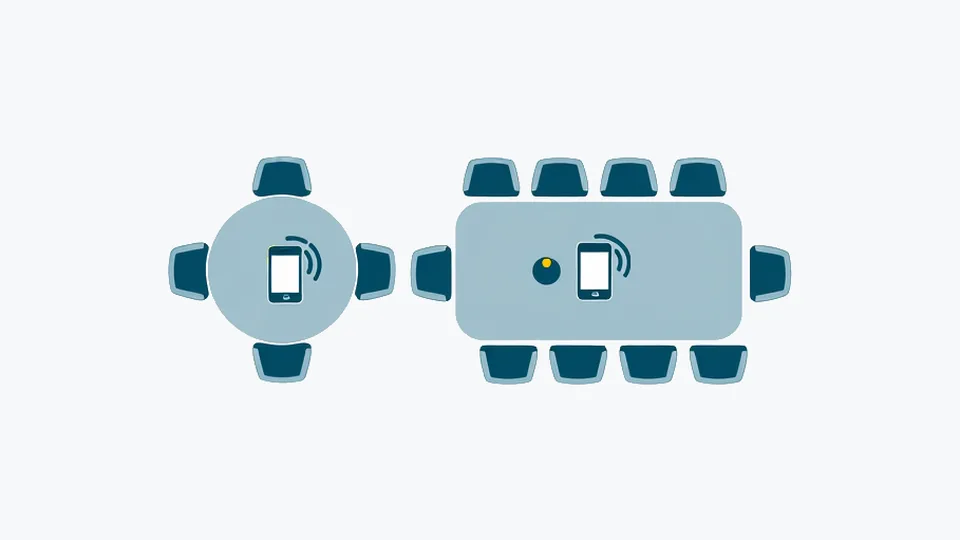
- Middle of the table, face up. It's about the same distance from most people, and you can see at a glance that the timer is still running. On a small or round table, that one spot usually covers everyone.
- Away from noise. Keep it clear of laptop fans, the projector, air vents and coffee cups. A folded napkin under the phone softens knocks on the table.
- Long boardroom table. The far ends sound faint from the middle. Voice Memos can record from an external microphone, and Apple says to look for "Made for iPhone" or "Works with iPhone". A table mic covers a long room better than the phone alone.
- Remote people on a speakerphone. Put the iPhone between the speakerphone and the people at the table, so both reach it at a similar level.
In a noisy room on iOS 26 or later, try Voice Isolation. With Voice Memos open, go to Control Center, tap Voice Memos at the top and choose Voice Isolation; Apple says it filters out background sounds. Keep it on in your test to check the far end still comes through.
How long can Voice Memos record? Battery and storage for 1–3 hours
Apple doesn't document a maximum recording length for Voice Memos, or how much battery and storage an hour uses. In practice, battery and free space set the limit:
- Plug it in for anything over an hour, with a cable to the wall or a power bank. Start with a full charge either way.
- Check free space in Settings > General > iPhone Storage, and run the 30-second test first to see how much one minute takes.
- Split very long sessions. If a meeting could run past 3 hours, stop at a break and start a new recording. Shorter files are easier to name, share and transcribe in one go.
- Use iCloud. Turn on Voice Memos in Settings > your name > iCloud > See All, and the recording also shows up on your Mac or iPad with the same Apple Account, ready to upload.
Get the transcript: in Voice Memos or from the M4A
In Voice Memos. On iPhone 12 or later with iOS 18 or later, Voice Memos can transcribe your recording. Apple lists English, Spanish, Portuguese, Italian, French, German, Japanese, Korean and Chinese (Simplified and Traditional), and it isn't available in every country or region. To watch it live, swipe up from the top of the waveform and tap the Transcription button. Later, tap the recording, tap the More button, then View Transcript or Copy Transcript. Search for a word and select it in the transcript to jump to that spot in the audio.
That's handy for finding a quote. For sharing, Apple describes copying and pasting the text. It doesn't mention a transcript file or timestamps.
Upload the M4A. In Voice Memos, tap the recording, tap the More button, then Share. Tap Options and choose Rendered for a single .m4a file. Save it to Files and upload it in Safari on the phone, or AirDrop it to your Mac. Then convert the M4A to text on TranscribTxt, which takes files up to 2 GB. The first 30 minutes are free while you have a free file left, and the whole recording, up to 3 hours, is $2 once. In October 2026, half of the uploaded files were transcribed in 14 seconds or less, and a 145-minute recording took 2 minutes 45 seconds. Times don't include uploading, which depends on your connection.
Voice Memos transcript vs uploading the M4A (Apple facts checked Nov 3, 2026)
| Voice Memos transcript | Upload the M4A to TranscribTxt | |
|---|---|---|
| Cost | Free, built in | First 30 min free while you have a free file left; whole file up to 3 h for $2 once |
| Works on | iPhone 12 or later, iOS 18 or later | Any phone or computer with a browser |
| What you get | Text in the app to copy and paste | TXT, SRT and VTT files; a paid file also comes as JSON with word times and Word |
| Timestamps | Not mentioned for copied text; search jumps to a word in the audio | SRT and VTT give every line a start and end time |
| Speaker labels | Not mentioned in Apple's guide | No: TranscribTxt doesn't label speakers |
| Best for | Finding one quote quickly | Minutes and a transcript you can share |
From transcript to minutes
A transcript isn't minutes yet. Three passes turn it into minutes:
- Fix names and numbers. Skim the text with the audio open and correct names, figures and jargon. Add who said what where it matters: TranscribTxt doesn't label speakers, and Apple's guide doesn't mention speaker labels.
- Pull out decisions and action items, each with an owner and a due date.
- Write a short summary at the top: what was decided and what happens next.
On iPhone 15 Pro, 15 Pro Max and iPhone 16 or later, Apple Intelligence's Writing Tools can summarize a Voice Memos transcript, in the languages and regions Apple supports. Check the summary against the transcript before you send it.
Our guide to writing meeting minutes from a recording has a template and an AI prompt for steps 2 and 3. For Zoom, Teams and other online calls, see how to transcribe a meeting. For voice notes that aren't meetings, our voice memo to text guide compares the options.
We are TranscribTxt (RESTART AI LLC) and aren't affiliated with Apple. Apple, iPhone, iCloud and AirDrop are trademarks of Apple Inc. Found an error? Write to support@transcribtxt.com and we'll check and fix it.
Turn your own recordings into text with TranscribTxt's M4A transcription tool.
Try TranscribTxt free
Free for files up to 30 min: your first one needs no account, a free account gets 3 a week. 99 languages.
First 30 min free · the whole file (up to 3 h) US$2
Try it freeFrequently Asked Questions
How do I record a meeting on my iPhone?
Tell everyone you're recording. Then open Voice Memos (it's in the Utilities folder), turn on Do Not Disturb in Control Center, lay the iPhone face up in the middle of the table and tap the Record button. Plug it in if the meeting runs over an hour. At the end, tap Stop. To name it, tap the recording, tap its name and type the meeting and the date.
Is it legal to record a meeting on my iPhone?
It depends on where you and the other people are. Some places let anyone taking part record; others require everyone's consent, and many employers have their own rules. The safe habit is to say you're recording at the start, ask whether everyone agrees, and stop if someone doesn't. This isn't legal advice. Our guide to consent for recording and transcribing a meeting covers it in more detail.
How long can Voice Memos record?
Apple doesn't document a maximum recording length for Voice Memos. In practice, free storage and battery set the limit. Check free space in Settings, General, iPhone Storage, keep the phone plugged in for anything over an hour, and run a 30-second test first. If a meeting could run past 3 hours, stop at a break and start a new recording: shorter files are easier to name, share and transcribe.
Does iPhone transcribe Voice Memos automatically?
It can: on iPhone 12 or later with iOS 18 or later, Voice Memos transcribes speech in the languages Apple lists (English, Spanish, Portuguese, Italian, French, German, Japanese, Korean and Chinese). It isn't available in every country or region. You can watch the transcript while you record or open it later: tap the recording, tap the More button, then View Transcript or Copy Transcript. Apple describes copying the text, not exporting a transcript file.
How do I get a transcript of a 2-hour meeting recorded on iPhone?
In Voice Memos, tap the recording, tap the More button, then Share, and save the .m4a to Files or AirDrop it to your Mac. Then upload it to a transcription tool, from Safari on the phone or from your computer. On TranscribTxt, the first 30 minutes are free while you have a free file left, and the whole recording, up to 3 hours, is $2 once. You can download TXT, SRT and VTT, and a paid file also comes as JSON with word times and Word. TranscribTxt doesn't label speakers.